AdminDroid Installation and Troubleshooting Guide
AdminDroid Installation and Troubleshooting Guide
AdminDroid Installation and Troubleshooting Guide (Windows Server 2025)
1. Overview
AdminDroid is a Microsoft 365 reporting and auditing tool that runs as a local web application on a Windows machine. It provides dashboards and reports for Microsoft 365 services such as Entra ID, Exchange Online, Teams, and SharePoint. The application is accessed through a browser after installation. (AdminDroid)
2. System Requirements
Supported operating systems include:
-
Windows 10 / Windows 11
-
Windows Server 2012 / 2016 / 2019 / 2022 / 2025
Recommended hardware (for tenants under 5000 users):
-
2 vCPU
-
8 GB RAM
-
25 GB free disk space
-
Internet connection for Microsoft 365 API access (AdminDroid)
3. Installation Steps
1. Download installer
Download the latest AdminDroid installer from:
https://admindroid.com/download
2. Run installer
-
Log in to the server using a local administrator account
-
Run the AdminDroid installer
-
Accept installation path (default recommended)
Default install path:
C:\Program Files\AdminDroid\Office 365 Reporter3. Installation process
The installer will automatically:
-
Deploy the AdminDroid web portal
-
Configure IIS web components
-
Install required background services
-
Create the web portal application
4. Access AdminDroid
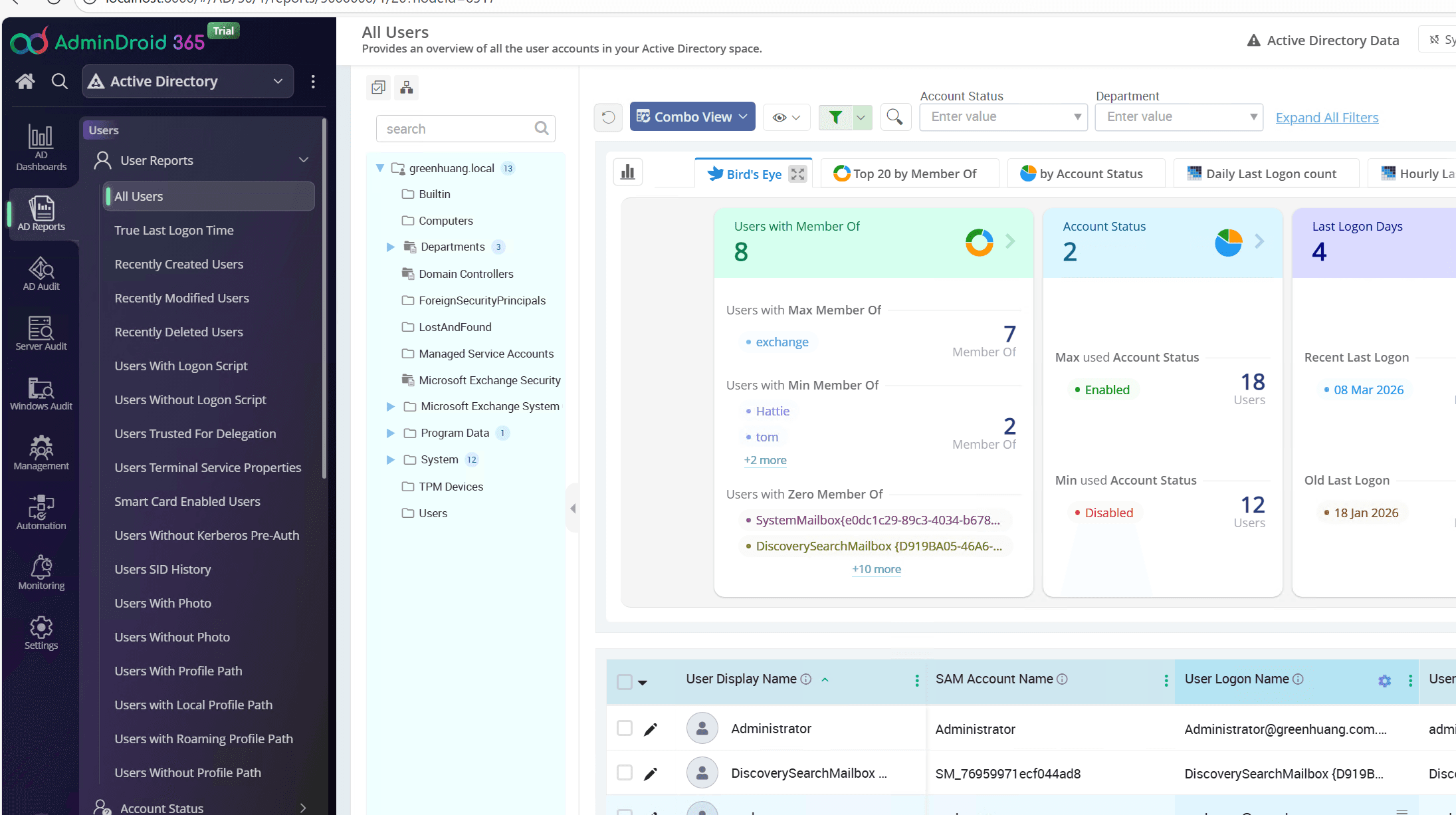
After installation, open:
http://localhost:8000Or from another device:
http://SERVER-IP:80004. First-Time Configuration
-
Log in using a Microsoft 365 Global Administrator account
-
Grant required API permissions
-
Select the Microsoft 365 services to monitor
-
Start initial data collection
Initial report data may take some time to generate.
5. Common Installation Issues
Issue 1 — HTTP Error 500.19
Error example:
HTTP Error 500.19
Error Code: 0x8007000d
AspNetCoreModuleV2
Cause
The IIS server is missing the ASP.NET Core Hosting Bundle required for the AdminDroid web portal.
Fix
Install the ASP.NET Core Hosting Bundle:
Download:
https://dotnet.microsoft.com/downloadInstall:
dotnet-hosting-x64.exeThen restart IIS:
iisresetIssue 2 — Missing IIS components
Ensure IIS features are installed.
Install these features:
Web Server (IIS)
  ├─ Static Content
  ├─ Default Document
  ├─ HTTP Errors
  ├─ ASP.NET
  ├─ ASP.NET 4.8
  ├─ .NET Extensibility
  ├─ ISAPI Extensions
  ├─ ISAPI Filters
  └─ Request Filtering
Issue 3 — Permission errors
Ensure the following folder permissions exist:
C:\Program Files\AdminDroidGrant access to:
IIS_IUSRSPermissions:
Read
Execute
Issue 4 — Application pool stopped
Open:
IIS ManagerCheck:
Sites → AdminDroidEnsure:
-
Application Pool is Running
-
Port 8000 is bound correctly
6. Useful Troubleshooting Locations
Event Viewer
Check:
Event Viewer
Windows Logs
Application
Look for:
IIS
AspNetCoreModule
AdminDroid
IIS logs
C:\inetpub\logs\LogFilesAdminDroid logs
C:\Program Files\AdminDroid\Office 365 Reporter\logs7. Best Practices
-
Install AdminDroid on a dedicated server
-
Use a static IP or DNS name
-
Restrict access with firewall rules
-
Perform regular updates
-
Monitor disk usage for report data storage
Dedicated servers are recommended for stability and monitoring performance. (AdminDroid)
8. Quick Troubleshooting Checklist
If the portal does not open:
-
Verify service is running
-
Check IIS site binding (port 8000)
-
Install ASP.NET Core Hosting Bundle
-
Restart IIS (
iisreset) -
Check Event Viewer logs
If useful, a PowerShell script that automatically installs all IIS + .NET prerequisites for AdminDroid on Windows Server 2025 can also be provided. This simplifies deployment on new servers.
Self-Hosting WireGuard with WGDashboard Using Docker
Step-by-step guide to deploying WGDashboard with Docker Compose, exposing the web UI securely on localhost, and managing a WireGuard server on a VPS.
Convert a Physical Windows 7 Computer to a Hyper-V Virtual Machine
This procedure converts an existing physical Windows 7 installation into a Hyper-V virtual machine using Microsoft Sysinternals Disk2vhd.