Deploying Pigsty on an Ubuntu VM
Deploying Pigsty on an Ubuntu VM
Pigsty is a PostgreSQL infrastructure stack that provides HA, monitoring, backup, and automation out of the box. It can be deployed easily on a single Ubuntu VM, making it ideal for homelab setups.
deploy and config vm
proxmox vm config
using this template with cloudinit to create ubuntu 24.04 vm.
Everything I've seen on optimizing Postgres on ZFS
agent: 1
balloon: 0
boot: order=scsi0
bootdisk: scsi0
cipassword:
ciuser: greenhuang
cores: 6
cpu: host
ide0: local-zfs:vm-110-cloudinit,media=cdrom,size=4M
ipconfig0: ip=192.168.0.100/24,gw=192.168.0.1,ip6=dhcp
ipconfig1: ip=dhcp,ip6=dhcp
memory: 15000
meta: creation-qemu=10.1.2,ctime=1771158916
name: pgsql-server
nameserver: 1.1.1.1
net0: virtio=BC:24:11:B0:79:32,bridge=vmbr0,firewall=1
net1: virtio=BC:24:11:A2:45:D9,bridge=vmbr1,firewall=1
numa: 1
ostype: l26
scsi0: local-zfs:vm-110-disk-0,discard=on,iothread=1,size=85504M,ssd=1
scsihw: virtio-scsi-single
serial0: socket
smbios1: uuid=fa8745a6-91c8-4b56-ada7-117e0c8c5069
sockets: 1
sshkeys:
vmgenid: 3433e848-070b-4097-ba79-ad5439f1f40b
which will create seperate disk for DB
/dev/sda
 ├── /var/lib/postgresql/data (disk0)
 └── /var/lib/postgresql/wal (disk1)
PostgreSQL WAL: Boost Performance with a Dedicated Disk
login vm and mount the disk
greenhuang@pgsql-server:~$ lsblk
NAME    MAJ:MIN RM  SIZE RO TYPE MOUNTPOINTS
sda       8:0    0 83.5G  0 disk
├─sda1    8:1    0 82.5G  0 part /
├─sda14   8:14   0    4M  0 part
├─sda15   8:15   0  106M  0 part /boot/efi
└─sda16 259:0    0  913M  0 part /boot
sdb       8:16   0   50G  0 disk
sr0      11:0    1    4M  0 rom
greenhuang@pgsql-server:~$ lsblk -f
NAME    FSTYPE FSVER   LABEL           UUID                                 FSAVAIL FSUSE% MOUNTPOINTS
sda
├─sda1  ext4   1.0     cloudimg-rootfs 9e367d2b-90cc-4fb8-a760-383572199c1a   77.2G     3% /
├─sda14
├─sda15 vfat   FAT32   UEFI            9D7E-EADD                              98.2M     6% /boot/efi
└─sda16 ext4   1.0     BOOT            0e754cb4-dba4-4a1f-898c-415e7e1b70a6  702.3M    13% /boot
sdb
sr0     iso966 Joliet  cidata          2026-04-05-20-10-42-00
we can find that disk have been detected but WAL disk havent mounted yet.
create partition
we can use sudo fdisk /dev/sdb to create partition
greenhuang@pgsql-server:~$ sudo fdisk /dev/sdb

Welcome to fdisk (util-linux 2.39.3).
Changes will remain in memory only, until you decide to write them.
Be careful before using the write command.

Device does not contain a recognized partition table.
Created a new DOS (MBR) disklabel with disk identifier 0x7a9fc2c8.

Command (m for help): n
Partition type
   p   primary (0 primary, 0 extended, 4 free)
   e   extended (container for logical partitions)
Select (default p):

Using default response p.
Partition number (1-4, default 1):
First sector (2048-104857599, default 2048):
Last sector, +/-sectors or +/-size{K,M,G,T,P} (2048-104857599, default 104857599):

Created a new partition 1 of type 'Linux' and of size 50 GiB.

Command (m for help): w
The partition table has been altered.
Calling ioctl() to re-read partition table.
Syncing disks.

greenhuang@pgsql-server:~$ lsblk -f
NAME   FSTYPE  FSVER   LABEL           UUID                                 FSAVAIL FSUSE% MOUNTPOINTS
sda
├─sda1 ext4    1.0     cloudimg-rootfs 9e367d2b-90cc-4fb8-a760-383572199c1a   77.2G     3% /
├─sda14
│
├─sda15
│      vfat    FAT32   UEFI            9D7E-EADD                              98.2M     6% /boot/efi
└─sda16
       ext4    1.0     BOOT            0e754cb4-dba4-4a1f-898c-415e7e1b70a6  702.3M    13% /boot
sdb
└─sdb1
format disk
use sudo mkfs.ext4 /dev/sdb1
greenhuang@pgsql-server:~$ sudo mkfs.ext4 /dev/sdb1
mke2fs 1.47.0 (5-Feb-2023)
Discarding device blocks: done
Creating filesystem with 13106944 4k blocks and 3276800 inodes
Filesystem UUID: f8d5c0c0-ef0d-4979-82c4-06fbc4eae42c
Superblock backups stored on blocks:
        32768, 98304, 163840, 229376, 294912, 819200, 884736, 1605632, 2654208,
        4096000, 7962624, 11239424

Allocating group tables: done
Writing inode tables: done
Creating journal (65536 blocks): done
Writing superblocks and filesystem accounting information: done

greenhuang@pgsql-server:~$ lsblk -f
NAME   FSTYPE  FSVER   LABEL           UUID                                 FSAVAIL FSUSE% MOUNTPOINTS
sda
├─sda1 ext4    1.0     cloudimg-rootfs 9e367d2b-90cc-4fb8-a760-383572199c1a   77.2G     3% /
├─sda14
│
├─sda15
│      vfat    FAT32   UEFI            9D7E-EADD                              98.2M     6% /boot/efi
└─sda16
       ext4    1.0     BOOT            0e754cb4-dba4-4a1f-898c-415e7e1b70a6  702.3M    13% /boot
sdb
└─sdb1 ext4    1.0                     f8d5c0c0-ef0d-4979-82c4-06fbc4eae42c
sr0    iso9660 Joliet  cidata          2026-04-05-20-10-42-00
create mount point and mount it
sudo mkdir -p /pgwal or other path if you want
and mount it sudo mount /dev/sdb1 /pgwal
greenhuang@pgsql-server:~$ sudo mkdir -p /pgwal
greenhuang@pgsql-server:~$ sudo mount /dev/sdb1 /pgwal

greenhuang@pgsql-server:~$ df -h
Filesystem      Size  Used Avail Use% Mounted on
tmpfs           1.5G  1.1M  1.5G   1% /run
/dev/sda1        80G  2.7G   78G   4% /
tmpfs           7.2G     0  7.2G   0% /dev/shm
tmpfs           5.0M     0  5.0M   0% /run/lock
/dev/sda16      881M  117M  703M  15% /boot
/dev/sda15      105M  6.2M   99M   6% /boot/efi
tmpfs           1.5G   12K  1.5G   1% /run/user/1000
/dev/sdb1        49G   24K   47G   1% /pgwal
make it persistent
sudo blkid

greenhuang@pgsql-server:~$ sudo blkid
/dev/sdb1: UUID="f8d5c0c0-ef0d-4979-82c4-06fbc4eae42c" BLOCK_SIZE="4096" TYPE="ext4" PARTUUID="7a9fc2c8-01"
Copy UUID, then: sudo nano /etc/fstab
add UUID=xxxx /pgwal ext4 defaults 0 2
Install Pigsty
curl -fsSL https://repo.pigsty.io/get | bash;

# Enter Pigsty directory
cd ~/pigsty
Generate Configuration
# Generate config file (optional, skip if you know how to configure)
./configure -g
Generates a default config file (pigsty.yml)
Automatically sets passwords and basic settings
You can edit this file later to customize PostgreSQL version, extensions, or cluster layout.
Deploy Pigsty
# Execute deployment playbook based on generated config
./deploy.yml - Install PostgreSQL
- Configure monitoring (Grafana, exporters)
- Set up backup and extensions
- Initialize the database cluster Pigsty uses Ansible playbooks to perform all operations in an idempotent way.
Access Services
After deployment:
PostgreSQL runs on port 5432
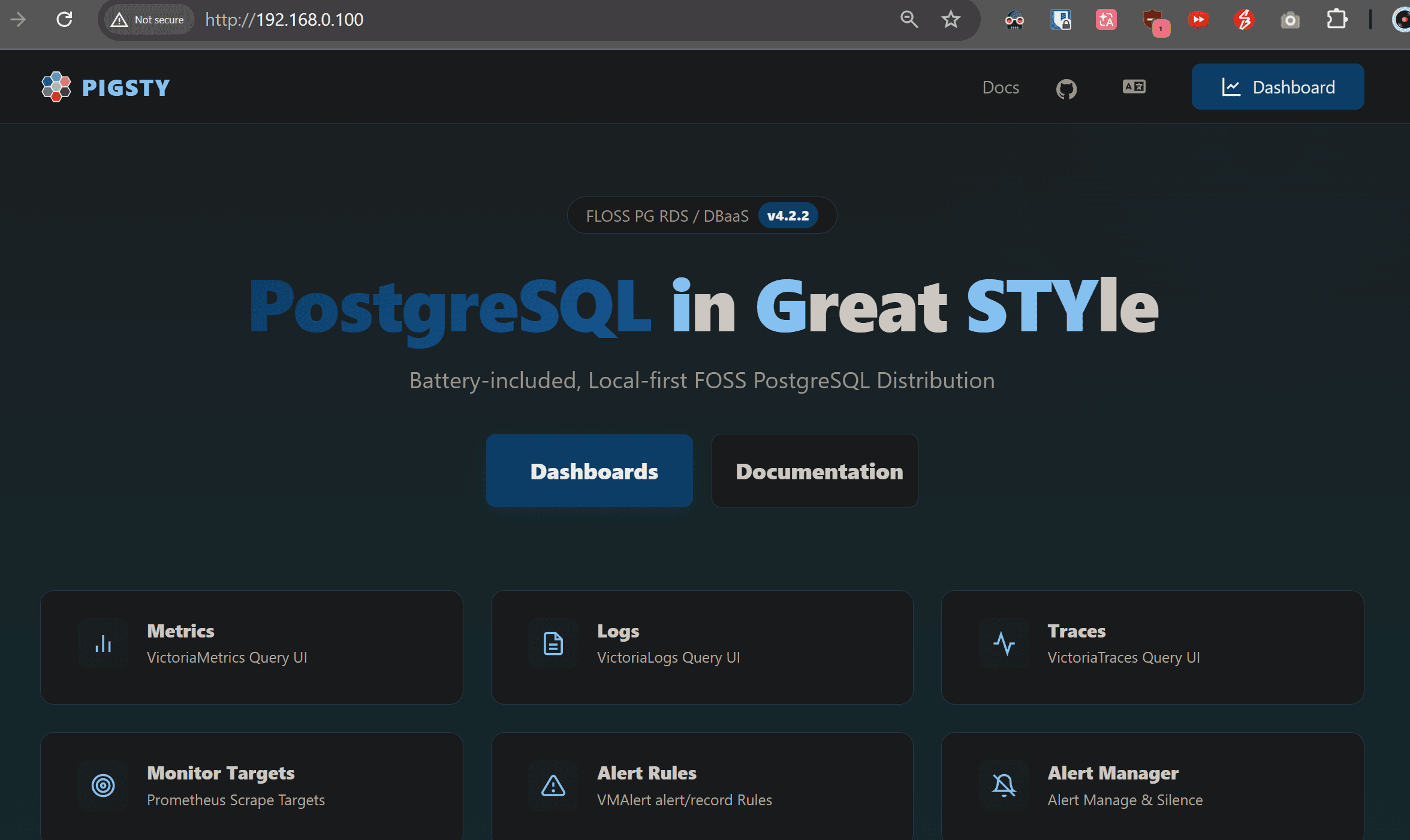
Grafana dashboard available via browser http://ip-address
You can connect using psql or any client
change WAL location
greenhuang@pgsql-server:/var/lib$ sudo -u postgres psql -c "show data_directory;"
 data_directory
----------------
 /pg/data
(1 row)

Time: 0.268 ms

greenhuang@pgsql-server:/var/lib$ sudo su
root@pgsql-server:/var/lib# cd /pg/data
root@pgsql-server:/pg/data# ls
PG_VERSION            pg_hba.conf.backup    pg_snapshots  postgresql.auto.conf
base                  pg_ident.conf         pg_stat       postgresql.base.conf
current_logfiles      pg_ident.conf.backup  pg_stat_tmp   postgresql.base.conf.backup
global                pg_logical            pg_subtrans   postgresql.conf
patroni.dynamic.json  pg_multixact          pg_tblspc     postgresql.conf.backup
pg_commit_ts          pg_notify             pg_twophase   postmaster.opts
pg_dynshmem           pg_replslot           pg_wal        postmaster.pid
pg_hba.conf           pg_serial             pg_xact
located data and wal folder location
stop pigsty service pig pt stop
move wal folder sudo mv pg_wal /pgwal/
create symlink sudo ln -s /pgwal/pg_wal /pg/data/pg_wal
fix the permission
sudo chown -R postgres:postgres /pgwal
sudo chmod 700 /pgwal/pg_wal
Check symlink
root@pgsql-server:/pg/data# ls -l /pg/data
total 176
lrwxrwxrwx 1 root     root        13 Apr  5 13:35 pg_wal -> /pgwal/pg_wal
restart pigsty service pig pt start
validate from pgsql
root@pgsql-server:/pg/data# sudo -u postgres psql
psql (18.3 (Ubuntu 18.3-1.pgdg24.04+1))
Type "help" for help.

postgres@pgsql-server:5432/postgres=# SELECT pg_current_wal_lsn();
 pg_current_wal_lsn
--------------------
 0/A000380
(1 row)

Time: 1.384 ms


root@pgsql-server:/pg/data# ls /pgwal/pg_wal
000000010000000000000002                  000000010000000000000006          00000002.history
000000010000000000000003                  000000010000000000000007          00000002000000000000000A
000000010000000000000004                  000000010000000000000008          00000002000000000000000B
000000010000000000000004.00000028.backup  000000010000000000000009          archive_status
000000010000000000000005                  00000001000000000000000A.partial  summaries